Connect Domain to Bluehost - Point a Domain From Another Registrar Without Breaking Email (2026)
If your domain is registered somewhere else, you can keep it there and still host your site on Bluehost. Here's how to add the domain to your account, point it to Bluehost and avoid the email mistake most people make.
On This Page
Connect or Transfer?
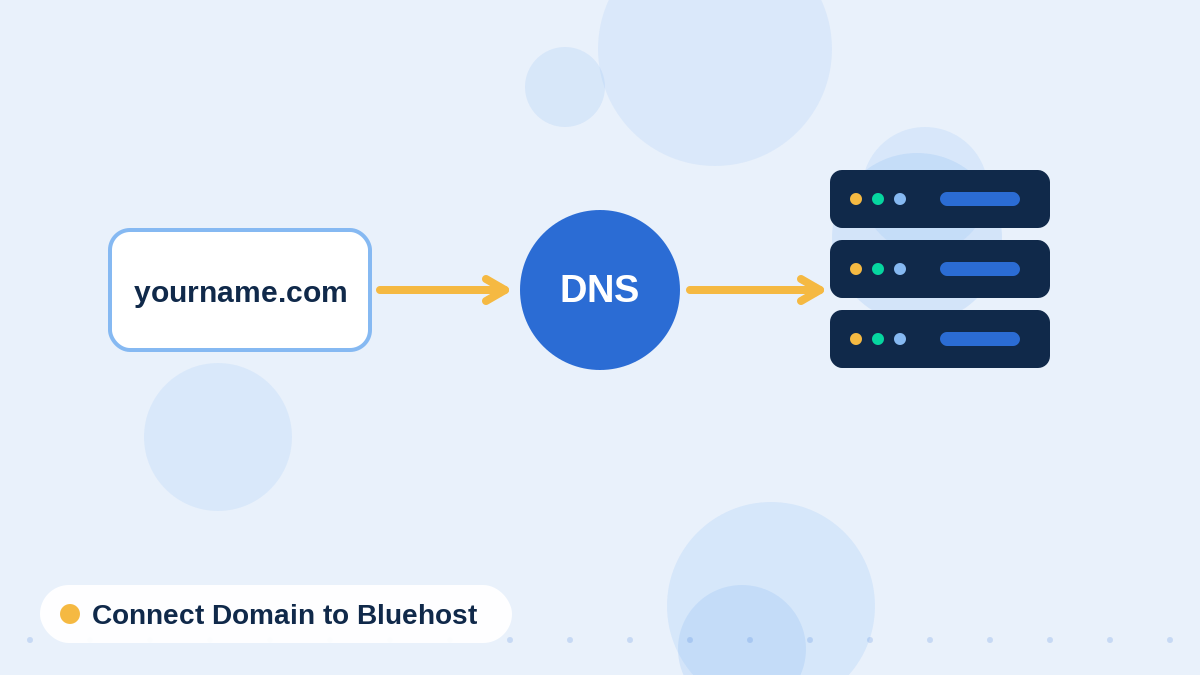
You have two ways to use a domain registered elsewhere with Bluehost:
- Connect it. The domain stays with your current registrar, and you point it to Bluehost. This is quick and doesn't involve moving the registration.
- Transfer it. The registration moves to Bluehost, so domain and hosting are in one account. It takes several days and requires an authorization code.
Connecting is the faster way to get your site live. You can always transfer later. This guide covers connecting; our domain transfer guide covers transferring.
Step 1: Add the Domain in Bluehost
Log in to the Bluehost Portal.
Click Domains in the left-hand menu.
Click Add a Domain and choose the option to connect an external domain.
Enter your domain and click Add.
Assign it to your website so Bluehost knows which site it should show.
Once added, the domain appears in your account as an external domain, meaning it's registered elsewhere but used with your Bluehost hosting.
Step 2: Choose How to Point It
There are two methods. Both work; the right one depends on where you want to manage DNS.
| Method | What You Change | DNS Managed At | Best For |
|---|---|---|---|
| Change nameservers | Nameservers at your registrar | Bluehost | Most people; simplest setup |
| Edit DNS records | A record (and often www) at your registrar | Your registrar | Keeping email or other services on your registrar's DNS |
Changing nameservers hands all DNS management to Bluehost. It's the simplest option and lets Bluehost set up records like SSL validation automatically.
Editing DNS records keeps DNS at your registrar. You point just the website records to Bluehost. It's useful if you have email or other services configured at your registrar that you don't want to move.
Step 3a: Change Nameservers

At your registrar, find the domain's nameserver settings. Replace the existing nameservers with Bluehost's:
- ns1.bluehost.com
- ns2.bluehost.com
Save the change. Bluehost's help center links to instructions for many popular registrars if you can't find the setting. VPS and dedicated customers should check their own dashboard for account-specific nameservers.
Step 3b: Edit DNS Records Instead
If you prefer to keep DNS at your registrar, update the website records there to point to your Bluehost server. Typically that means:
- The A record for your root domain, pointing to your Bluehost server's IP address.
- The www record, usually a CNAME pointing to your root domain, or an A record to the same IP.
You'll find your server's IP address in your Bluehost account. Leave your email records (MX, SPF, DKIM) as they are if your email is hosted elsewhere.
Before You Switch: Protect Your Email
This is the step most people miss. If your domain currently has email set up, such as Google Workspace or another email service, those settings live in your current DNS as MX and TXT records.
When you change nameservers to Bluehost, Bluehost's DNS takes over. Any email records that only exist at your old provider stop working, and email can bounce.
To avoid that:
List your current DNS records at your registrar, especially MX, TXT and any CNAME records for email.
Recreate them in Bluehost's DNS after adding the domain, before or immediately after changing nameservers.
Test email by sending and receiving a message once DNS has updated.
Our Bluehost DNS records guide shows where to add each record.
Step 4: Wait for Propagation
Bluehost says DNS changes can take up to 48 hours to take full effect worldwide. During that time, some visitors may see your old site and others the new one.
To check progress, try your site from a different network, such as your phone's mobile data, or use an online DNS lookup tool. Your own computer may cache the old address for a while.
Step 5: Check SSL and Your Site
Once the domain points to Bluehost, Bluehost can issue your free SSL certificate. Visit your site with https and look for the padlock. If it isn't there yet, give it a little time, then check the SSL settings in your dashboard. Our SSL guide covers common issues.
Finally, open your site, click around and submit a test form to confirm everything works.
Troubleshooting
- Site still shows the old host: propagation isn't finished, or your device is caching. Try another network.
- Email stopped working: recreate MX and email TXT records in Bluehost's DNS.
- "Domain not connected" message: make sure the domain is assigned to the right website in the Portal.
- Changes don't apply: check you're editing DNS where the nameservers point.
- Domain already in another Bluehost account: Bluehost will prompt you to merge accounts or move the domain.
Our nameservers guide explains how DNS fits together if you're stuck.
Connect Domain to Bluehost FAQ
What are Bluehost's nameservers?
ns1.bluehost.com and ns2.bluehost.com for standard accounts.
Do I have to transfer my domain to use Bluehost?
No. You can keep it at your registrar and point it to Bluehost.
How long does it take to connect a domain?
The setup takes minutes; DNS changes can take up to 48 hours to spread.
Will changing nameservers affect my email?
It can. Recreate your email records in Bluehost's DNS before or right after switching.
Can I use an A record instead of nameservers?
Yes. Point the A record to your Bluehost server's IP and keep DNS at your registrar.
Should I transfer my domain later?
Optional. Transferring puts domain and hosting in one account, but connecting works fine long-term.