Bluehost DNS Records - How to View, Add and Edit Records Without Breaking Your Site (2026)
DNS records tell the internet where your website and email live. Most of the time Bluehost sets them up for you, but connecting email services, verifying tools or moving hosts means editing them yourself.
On This Page
What DNS Records Do
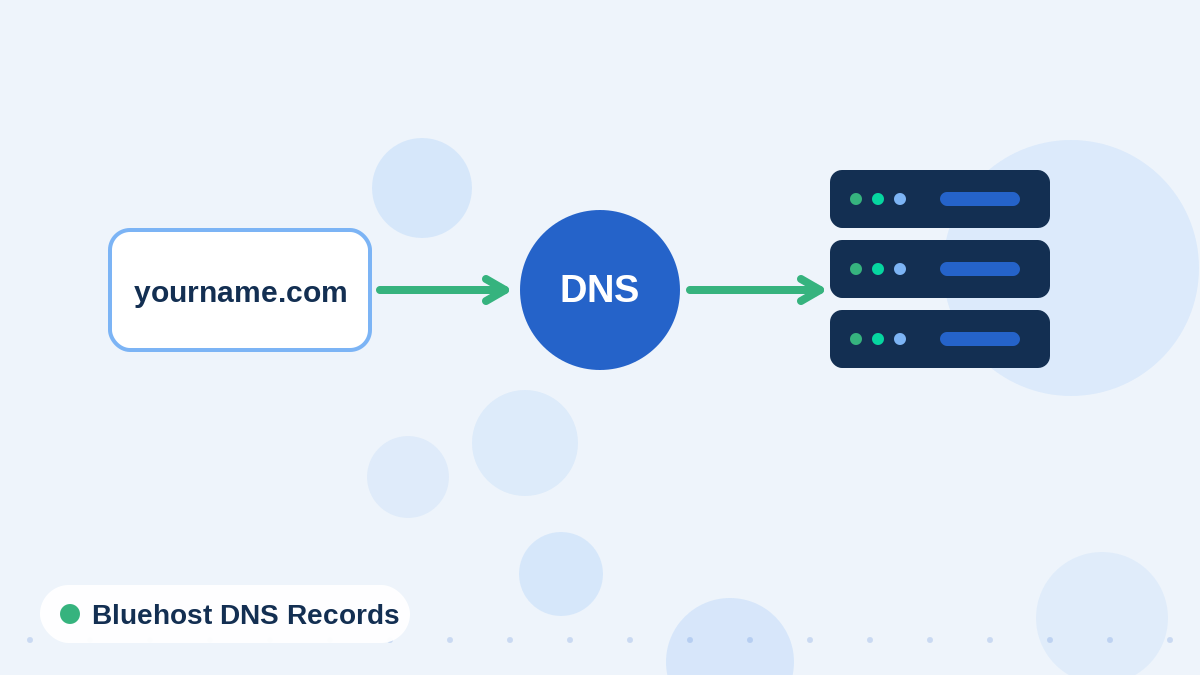
DNS (the Domain Name System) works like the internet's address book. When someone types your domain, DNS records tell their browser which server to contact for the website and which servers handle your email.
Your records live with your DNS provider, which is whoever your nameservers point to. If your domain uses ns1.bluehost.com and ns2.bluehost.com, Bluehost is your DNS provider. Our what are nameservers guide explains the difference between nameservers and records.
Where to Manage DNS on Bluehost
Log in to the Bluehost Portal.
Open Domains and select the domain.
Open the DNS settings (sometimes shown as DNS or Advanced DNS).
View, add, edit or delete records, then save.
If your domain uses another provider's nameservers (for example, a CDN or your registrar's DNS), changes in Bluehost won't take effect. Edit records at that provider instead.
The Main Record Types
| Record | What It Does | Typical Use |
|---|---|---|
| A | Points a name to an IPv4 address | Your website's server |
| AAAA | Points a name to an IPv6 address | Your website's server over IPv6 |
| CNAME | Points one name to another name | www to your main domain; third-party services |
| MX | Says where to deliver email, with a priority | Email hosting, Google Workspace |
| TXT | Holds text values | Domain verification, SPF, DKIM, DMARC |
| SRV | Points services to servers and ports | Some calling and chat services |
| CAA | Says which authorities may issue SSL | Optional SSL control |
A Records
The A record for your bare domain (shown as @) points to your hosting server's IP address. If it's wrong, your website won't load. Change it only when moving hosts or following a provider's instructions.
CNAME Records
CNAME records point a subdomain to another domain name. You'll often add them when connecting services like email marketing tools, help desks or store platforms.
MX Records
MX records route your email. Each has a priority number; lower numbers are tried first. When switching email providers, such as moving to Google Workspace, replace the old MX records with the new provider's, rather than mixing them.
TXT Records
TXT records hold text that other services read. You'll use them for:
- Domain verification, such as for Google Search Console or Google Workspace.
- SPF, listing servers allowed to send your mail.
- DKIM, publishing the key that signs your mail.
- DMARC, telling receivers how to handle mail that fails checks.
How to Add a DNS Record
Open the DNS settings for your domain.
Choose Add Record and select the type.
Enter the host name: @ for the bare domain, or a subdomain such as www or mail.
Enter the value exactly as your provider gives it.
Set the TTL (time to live), or leave the default.
Save, then wait for the change to spread.
Copy and paste values rather than typing them. A single wrong character in a verification code or DKIM key stops it working.
Common DNS Tasks
| Task | Records Involved |
|---|---|
| Point your domain to Bluehost hosting | A record for @ and www (or Bluehost nameservers) |
| Set up Google Workspace | MX records, TXT verification, DKIM TXT |
| Verify Google Search Console | TXT record |
| Connect an email marketing service | CNAME or TXT records for authentication |
| Use a subdomain for another service | CNAME or A record for the subdomain |
How Long DNS Changes Take

DNS changes don't update everywhere at once. Each record has a TTL, which tells other servers how long to remember the old value. Bluehost says changes can take up to 48 hours to spread fully, though many updates appear within minutes or hours.
During that time, some visitors may see the old setting and others the new one. Plan big changes, like moving email providers, for quiet periods. You can check progress with an online DNS lookup tool that tests from several locations.
Mistakes to Avoid
- Deleting the A record for your domain, which takes your site offline.
- Mixing MX records from two email providers.
- Having more than one SPF record: combine services into a single SPF TXT record.
- Editing DNS at the wrong provider when your nameservers point elsewhere.
- Changing nameservers without copying records you rely on, such as email records.
Before making big changes, take a screenshot or note of your current records so you can put things back.
Bluehost DNS Records FAQ
Where do I edit DNS on Bluehost?
In the Portal under Domains, then your domain's DNS settings.
Why aren't my DNS changes working?
Your nameservers may point elsewhere, or the change hasn't spread yet. Allow up to 48 hours.
What's the difference between nameservers and DNS records?
Nameservers decide which provider hosts your records; records say where your website and email live.
Can I use Bluehost hosting with DNS elsewhere?
Yes. Point an A record at your DNS provider to your Bluehost server.
How do I add a Google verification record?
Add the TXT record Google gives you, then click verify once it has spread.
Can I have two SPF records?
No. Combine all your senders into one SPF record.