How to Make a Website - Plan, Build, Launch and Grow Your First Site Step by Step (2026)
You can make a professional website in a weekend without code. Here's the full roadmap, from planning what your site needs to launching it and getting your first visitors, with the decisions that matter at each step.
View Bluehost PlansOn This Page
- Step 1: Decide What Your Website Is For
- Step 2: Choose Your Platform
- Step 3: Get a Domain Name
- Step 4: Choose Hosting
- Step 5: Install WordPress and Pick a Design
- Step 6: Plan Your Pages
- Step 7: Write Your Content
- Step 8: Add Essential Features
- Step 9: Make It Fast and Mobile-Friendly
- Step 10: Test and Launch
- Step 11: Get Your First Visitors
- Step 12: Keep Improving
- Do It Yourself or Hire Help?
- Common Mistakes to Avoid
- Guides for Specific Kinds of Sites
- How Much Does It Cost to Make a Website?
- How to Make a Website FAQ
Step 1: Decide What Your Website Is For
Every good website starts with a clear goal. Before choosing tools, answer three questions:
- Who is it for? Customers, readers, employers, members.
- What should they do? Call you, buy something, read articles, book an appointment, sign up.
- What do they need to see first? Your services, your work, your prices, your location.
Your answers shape everything else: the pages you need, the platform you choose and how you measure success. A bakery needs opening hours, a menu and an order button. A freelance designer needs a portfolio and a contact form. A blogger needs great articles and an email sign-up.
Step 2: Choose Your Platform
There are two main ways to build a site without code:
| Factor | Self-Hosted WordPress | All-in-One Website Builder |
|---|---|---|
| Setup | Install on hosting; guided tools make it easy | Sign up and start |
| Flexibility | Very high: any theme or plugin | Limited to the platform's features |
| Ownership | You control files and data; move anytime | Tied to the platform |
| Cost | Hosting from a few dollars a month | Monthly plan, often higher for business features |
| Growth | Blogs, stores, memberships, anything | Good for simple sites |
For most people building a site they want to grow, self-hosted WordPress is the stronger long-term choice. Bluehost also offers a separate AI Website Builder for people who'd rather build by chatting and never touch WordPress. Our Bluehost website builder guide compares the options.
Step 3: Get a Domain Name
Your domain is your address, such as yourname.com. Choose something short, easy to spell and matched to your brand, with a .com if possible.
Many hosts include a domain free for the first year. Bluehost, for example, includes one with its Web, WordPress and WooCommerce plans on 12-month or 36-month terms. Our how to choose a domain name guide has practical tips.
Step 4: Choose Hosting
Hosting is where your website lives. For a first website, shared WordPress hosting is the right starting point: affordable, managed for you and easy to upgrade.
| Plan | Intro Price | Renews At | Best For |
|---|---|---|---|
| Starter | $3.99/mo | $9.99/mo | Blogs, portfolios, simple sites |
| Business | $6.99/mo | $13.99/mo | Small businesses wanting phone support |
| eCommerce Essentials | $14.99/mo | $21.99/mo | Online stores |
Look for free SSL, backups, a free domain and good support. Our how to choose a web host guide covers what matters, and our sign-up guide walks through checkout.
Step 5: Install WordPress and Pick a Design
On Bluehost, add a WordPress site from the Websites section of the Portal. The WordPress AI Builder asks for your site's title, type and a short description, then generates three complete designs to choose from.
Choose the design whose structure fits best. You'll replace the starter text and images with your own. If you prefer, you can start with a blank WordPress install and choose a theme yourself.
Our install WordPress on Bluehost guide walks through each screen.
Step 6: Plan Your Pages
Most small websites need only a handful of pages to start:
Home
What you do, who it's for and the main action you want visitors to take.
About
Your story and why visitors should trust you.
Services or Products
What you offer, with clear details and prices if possible.
Contact
A form, email, phone and location if relevant.
Blog or Resources
Helpful articles that answer your audience's questions.
Policies
Privacy policy, and for stores, shipping and returns.
Sketch a simple menu with these pages. Visitors should reach anything important in one or two clicks.
Step 7: Write Your Content
Content is what turns visitors into customers. A few principles help:
- Lead with the visitor's need, not your history. Say what you do and who it's for in the first lines.
- Be specific. Real prices, locations, timeframes and examples beat vague claims.
- Use short paragraphs and clear headings, because most people scan.
- Include a clear next step on every page, such as "Book a consultation" or "View the menu."
- Use your own photos where possible. Real images build trust.
If you used the AI Builder, rewrite its starter text in your own voice with real details.
Step 8: Add Essential Features
A few features make almost every site work better:
- Contact form, tested to make sure messages arrive.
- SEO plugin for titles, descriptions and a sitemap. Bluehost includes Yoast SEO.
- Security with strong passwords and two-factor login.
- Backups, including an off-site copy once your site is active.
- Analytics, so you can see what's working.
Keep plugins lean. Our essential WordPress plugins guide lists the few most sites need.
Step 9: Make It Fast and Mobile-Friendly
Most visitors browse on phones, and slow sites lose them. Before launch:
- Preview every page on your phone.
- Compress and resize images.
- Make sure caching is on. Bluehost includes caching and a free CDN.
- Run a speed test on your homepage.
Our site speed guide covers quick wins.
Step 10: Test and Launch
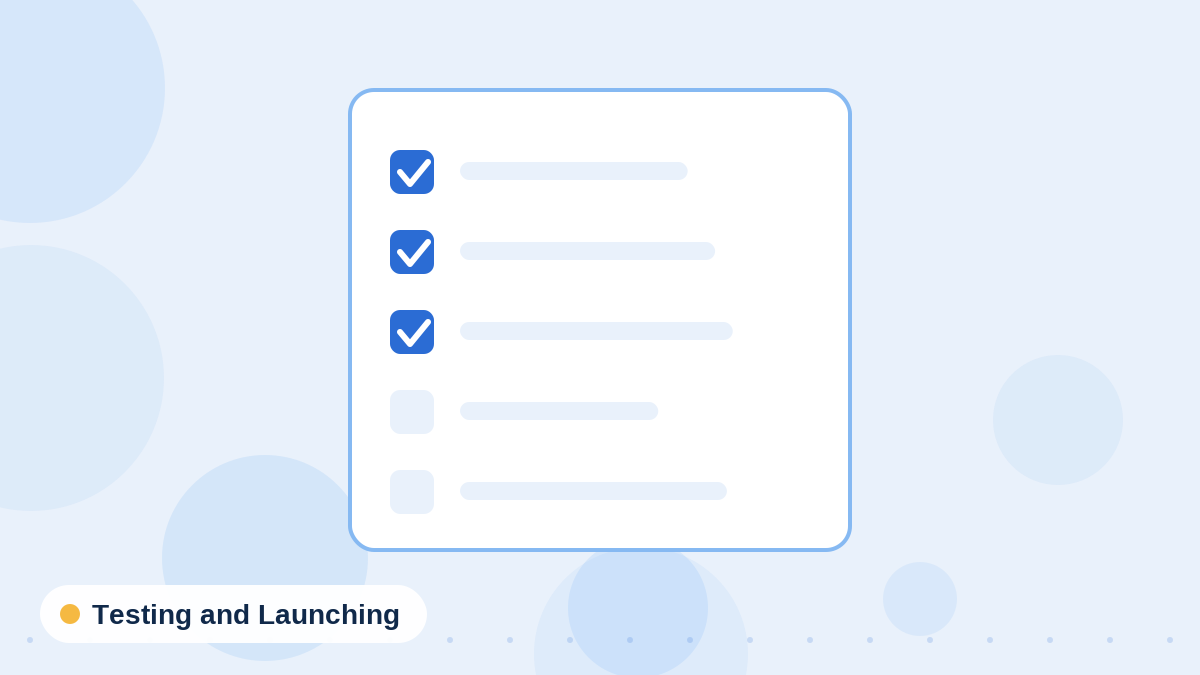
Before you tell anyone about your site, check:
Every page loads and looks right on mobile and desktop.
Every link and button works.
Forms submit and messages arrive.
The padlock shows, meaning SSL is working.
Search engines can index the site, with the discourage-indexing setting turned off.
Your sitemap is submitted in Google Search Console.
Our website launch checklist has the complete list.
Step 11: Get Your First Visitors
A new website doesn't get visitors automatically. Start with:
- Your existing network. Share the site with customers, friends and colleagues.
- Google Business Profile, if you serve a local area.
- Social media profiles linking to your site.
- Helpful content that answers questions your audience searches for.
- Email, collecting addresses so visitors can hear from you again.
Step 12: Keep Improving
A website is never finished. Each month, check analytics to see which pages people visit and where they leave. Update content, add new articles, and keep WordPress and plugins updated. Our WordPress maintenance checklist makes upkeep simple.
Do It Yourself or Hire Help?
You don't have to choose between doing everything yourself and paying an agency. There's a spectrum:
| Approach | Typical Cost | Time From You | Best For |
|---|---|---|---|
| Do it yourself with a guided builder | Hosting only | Highest | Most small sites and first websites |
| DIY with occasional expert help | Hosting plus an hourly session | Medium | Owners who want guidance on design or SEO |
| Hire a freelancer | One-time project fee | Low | Custom designs on a budget |
| Hire an agency | Larger project fee | Lowest | Complex sites and larger businesses |
Bluehost sits across several of these. Its WordPress AI Builder covers the DIY route, Pro WordPress Live offers on-demand design and SEO guidance from $39 a month or as a single hour, and its Hire a Pro service quotes custom design projects. Our customer support guide explains the paid help options.
If you hire someone, insist that the domain and hosting are registered in your name, and that you receive admin access. It's your website.
Common Mistakes to Avoid
- Starting without a goal. A site that tries to do everything does nothing well.
- Too many pages too soon. Start with five or six strong pages, then grow.
- Vague copy. Visitors should know what you do within seconds.
- No clear call to action. Every page should point to a next step.
- Ignoring mobile. Check every page on a phone before launch.
- Huge images. Compress before uploading.
- No backups. Set them up before you need them.
- Forgetting renewals. Note your domain and hosting renewal dates.
Guides for Specific Kinds of Sites
The steps above apply to every website, but each type has its own priorities. Our dedicated guides go deeper:
- Blogs: our how to start a blog guide covers niches, content planning and monetization.
- Small businesses: our small business website guide covers local SEO, trust signals and lead capture.
- Portfolios: our portfolio website guide covers curating and presenting your work.
- Online stores: our WooCommerce store guide covers products, payments and shipping.
How Much Does It Cost to Make a Website?
A simple WordPress site can cost well under $100 in its first year, covering hosting at intro prices, with the domain free for year one. Optional costs include premium themes, plugins, professional photos or design help. Our hosting cost guide breaks down realistic budgets.
How to Make a Website FAQ
Can I make a website without coding?
Yes. WordPress with a guided builder or theme, or an all-in-one website builder, needs no code.
How long does it take to make a website?
A simple site can be ready in an afternoon. Allow a weekend to write good content and test everything.
What's the cheapest way to make a website?
Shared WordPress hosting with a free first-year domain, plus free themes and plugins.
Do I need a domain name?
For a professional site, yes. Many hosts include one free for the first year.
Which platform is best for beginners?
WordPress with a guided setup offers the best mix of ease and growth. Website builders are simplest but less flexible.
Can I make a website for free?
Free options exist but come with ads, limits and no custom domain. Paid hosting is better for anything important.