Bluehost Site Speed - Caching, CDN, Images and Plugin Fixes That Actually Help (2026)
Most slow WordPress sites are slow because of what's installed on them, not the server. Here's how to find the cause and use Bluehost's built-in speed tools to fix it.
View Bluehost PlansOn This Page
Why Site Speed Matters
Speed affects almost everything that matters on a website:
- Visitors leave slow pages, especially on phones.
- Conversions drop when checkout and forms lag.
- Search engines consider page experience, including Core Web Vitals.
What that means for you: shaving a second or two off your load time can do more for sales than a redesign. Why it matters on shared hosting: resources are shared, so an efficient site gets more out of the same plan.
Measure Before You Change Anything
Run your homepage and a few key pages through a page speed tool, such as Google PageSpeed Insights, and note:
- Largest Contentful Paint (LCP): how long the main content takes to appear.
- Interaction to Next Paint (INP): how quickly the page responds to taps and clicks.
- Cumulative Layout Shift (CLS): how much the layout jumps around while loading.
- Server response time: how quickly the server starts sending the page.
Test on mobile settings, since that's what Google mostly uses. Retest after every change so you know what actually helped.
Turn On Caching
Caching stores ready-made copies of your pages, so the server doesn't rebuild every page for every visitor. It's usually the single biggest improvement.
Bluehost's plans include static and object caching. In WordPress, the Bluehost plugin includes caching controls, so check caching is turned on there. Clear the cache after major changes so visitors see the latest version.
Avoid stacking several caching plugins on top of Bluehost's caching. Two caching layers fighting each other can cause errors and stale pages. Pick one approach.
Enable the CDN
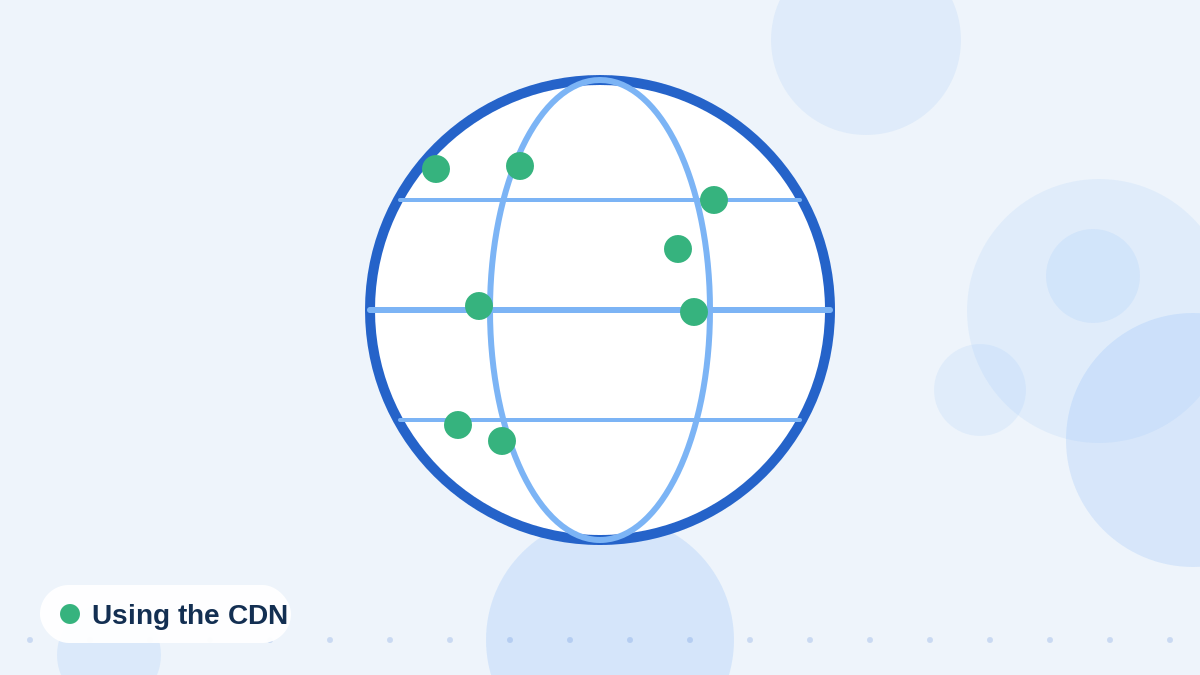
A content delivery network (CDN) stores copies of your images, stylesheets and scripts on servers around the world, so visitors download them from somewhere nearby. Bluehost includes a free CDN on its hosting plans, and Bluehost Cloud adds a premium CDN with global edge caching.
The CDN helps most when your visitors are spread across countries or far from your data center. Our what is a CDN guide explains how it works.
Optimize Images
Images are usually the heaviest part of a page. To keep them light:
- Resize before uploading: a photo straight from a phone can be several thousand pixels wide, far more than a page needs.
- Compress images with an optimization plugin or before uploading.
- Use modern formats such as WebP where your setup supports them.
- Lazy-load images below the fold, which WordPress does by default for most images.
- Don't lazy-load the main hero image, since it's usually your LCP element.
| Image Type | Width | Target File Size |
|---|---|---|
| Full-width hero | 1,600–2,000 px | Under 250 KB |
| In-article image | 1,000–1,200 px | Under 150 KB |
| Thumbnail | 300–600 px | Under 50 KB |
These are guidelines, not rules. The goal is images that look sharp without being heavier than needed.
Trim Plugins and Your Theme
Every plugin adds code, and some add a lot. Go through your plugin list and ask of each one: do we still use it, and is there a lighter alternative?
- Delete plugins you don't use, rather than just deactivating them.
- Replace heavy plugins that load scripts on every page when you only need them on one.
- Use a lightweight theme, especially if your current one loads sliders, animations and fonts you don't use.
- Limit external scripts such as chat widgets, trackers and embeds.
Page builders can be convenient but heavy. If you use one, keep layouts simple and avoid stacking many effects.
Keep PHP and WordPress Updated
Newer PHP versions run WordPress faster and more securely. Check your PHP version in the Portal under your website's settings, or in cPanel's MultiPHP Manager, and move to a current supported version after testing on staging. Our PHP version guide walks through it.
Keep WordPress, themes and plugins updated too, since updates often include performance improvements.
Clean Up the Database
Over time, WordPress databases collect post revisions, spam comments, expired temporary data and leftovers from deleted plugins. A cleanup plugin can remove this clutter. Take a backup first, then clean up a few times a year.
When the Problem Is Your Plan
If you've done the above and your site still slows down during busy periods, you may have outgrown your plan:
| Sign | What It Suggests |
|---|---|
| Fast when quiet, slow when busy | Not enough resources for peak traffic |
| Resource limit warnings | You're hitting plan limits |
| Many busy sites on one plan | Sites are competing for the same resources |
| A growing store with frequent orders | Checkout needs more dedicated resources |
Options include moving to a higher shared plan, moving a busy site to its own plan, or upgrading to Bluehost Cloud or VPS. Our upgrade guide and traffic capacity guide help you decide.
Bluehost Site Speed FAQ
Is Bluehost fast enough for WordPress?
For most small and medium sites, yes, when caching, the CDN and image optimization are in place.
Does Bluehost include caching?
Yes. Plans include static and object caching, managed through the Bluehost plugin in WordPress.
Should I install a caching plugin on Bluehost?
Usually not alongside Bluehost's own caching. Use one caching approach to avoid conflicts.
Will a CDN make my site faster?
It helps most for visitors far from your server and for pages with many images.
Why is my site slow only sometimes?
Traffic spikes, heavy background tasks or busy shared resources. If it's frequent, consider upgrading.
Does PHP version affect speed?
Yes. Newer supported PHP versions generally run WordPress faster.