Install WordPress on Bluehost - From the Bluehost Portal to Your First Published Page (2026)
Bluehost installs WordPress for you from its dashboard, with an AI tool that builds a starting design in minutes. Here's the exact process, what each option means and what to check before you go live.
View Bluehost PlansOn This Page
- Before You Install
- Step 1: Open Websites in the Bluehost Portal
- Step 2: Choose WordPress
- Step 3: Describe Your Site
- Step 4: Add Your Logo
- Step 5: Choose a Design
- Step 6: Log In to WordPress
- Step 7: Connect Your Domain
- Step 8: Make Sure SSL Is Working
- Step 9: Customize and Publish
- Installing WordPress Without the AI Creator
- Installing More Than One WordPress Site
- Troubleshooting Installation
- Install WordPress on Bluehost FAQ
Before You Install
You'll need:
- A Bluehost hosting plan. Any WordPress or web hosting plan works. Our sign-up guide covers getting one.
- A domain, either registered with Bluehost or ready to connect. You can also start on a temporary address and add the domain later.
- A short description of your site, which the AI Site Creator uses to build your designs.
- Your logo, if you have one.
The whole process takes around ten to fifteen minutes.
Step 1: Open Websites in the Bluehost Portal
Log in to the Bluehost Portal. In the left-hand menu, click Websites. This is where you'll manage all the WordPress sites on your account.
On the Websites page, click Add Website.
Step 2: Choose WordPress
Bluehost asks what kind of site you're creating. Choose WordPress.
You'll then see two options:
AI Site Creator
Generates complete WordPress designs from a short description. Best for new sites.
Import an Existing WordPress Site
Brings a WordPress site over from another host. Best if you're moving a site.
For a new site, choose the AI Site Creator. If you're moving an existing site, our migration guide covers the import route.
Step 3: Describe Your Site
Enter a title, a description and a site type, then continue.
The description shapes everything the AI produces, so be specific. Compare:
- Vague: "Bakery website."
- Specific: "Family-run bakery in Leeds selling sourdough, pastries and celebration cakes, with online pre-orders and a weekly specials page."
The specific version gives the AI enough to create relevant pages, sections and starter content.
Step 4: Add Your Logo
You can upload a logo now. If you don't have one, you can skip this step or, depending on the flow, generate one with AI as a placeholder. A real logo helps the AI pick colors that match your brand.
Step 5: Choose a Design
Bluehost builds your site and presents several design options, with three complete designs in the WordPress AI Builder's layouts panel. Hover over or preview each layout to see how it looks.
Judge the layouts by structure rather than wording. You'll rewrite the text anyway, so pick the design whose sections, navigation and look best fit your business. Once you choose a design, you edit it in the WordPress editor rather than switching back. Our WordPress AI Builder guide explains the options in more detail.
Step 6: Log In to WordPress
When installation finishes, you can open WordPress directly from your Bluehost dashboard. That signs you in to the WordPress admin area, where you edit pages, write posts and add plugins.
You can also log in directly at yourdomain.com/wp-admin with the WordPress username and password. Keep these safe; they're separate from your Bluehost Portal login. Our login help guide covers lost passwords.
Step 7: Connect Your Domain
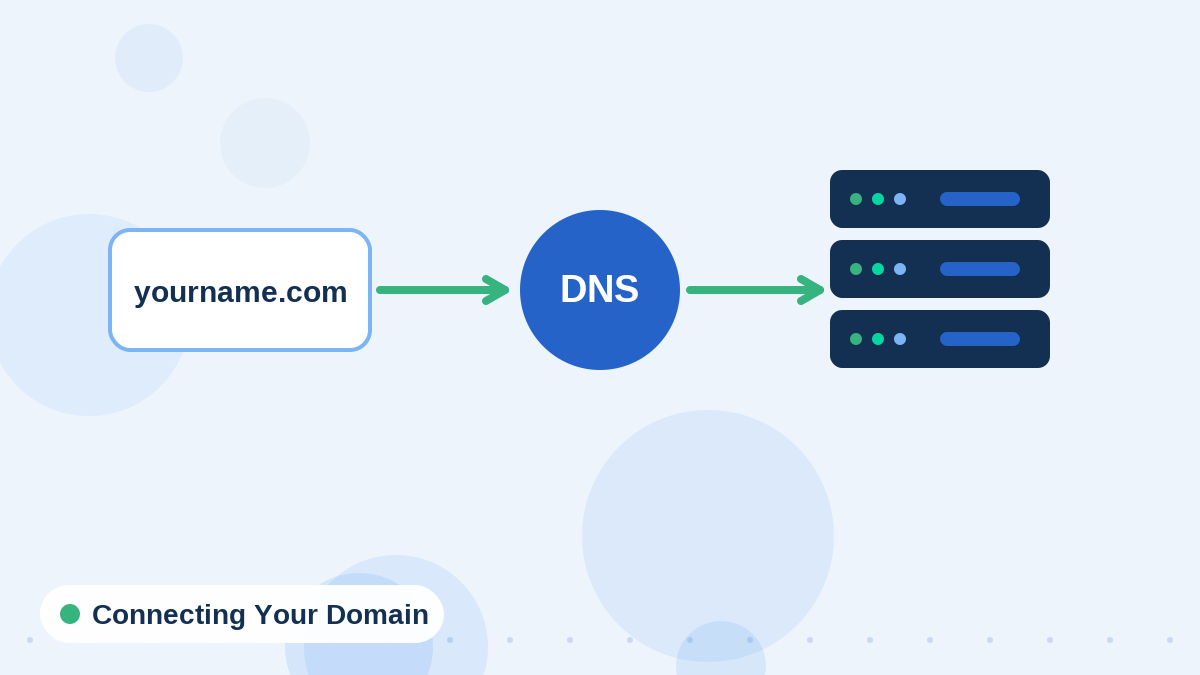
If you registered your domain with Bluehost during sign-up, it's usually connected automatically.
If your domain is registered elsewhere, connect it from Domains in the Bluehost Portal, then point it to Bluehost by changing its nameservers to ns1.bluehost.com and ns2.bluehost.com at your registrar. DNS changes can take up to 48 hours. Our connect a domain guide walks through it.
Step 8: Make Sure SSL Is Working
Bluehost includes a free SSL certificate. Once your domain points to Bluehost, check that your site loads with https and a padlock. If it doesn't straight away, give it time for the certificate to issue, then check the SSL settings in your dashboard. Our Bluehost SSL guide covers common issues.
Step 9: Customize and Publish
Now make the site yours:
Replace starter text with your real content, in your own words.
Swap in your own photos, optimized for the web.
Review every page and remove any you don't need.
Add a contact page with a working form.
Set your site title, tagline and timezone in WordPress settings.
Preview on your phone, since most visitors browse on mobile.
Our after installing WordPress guide covers the settings and checks to do before launch.
Installing WordPress Without the AI Creator
If you'd rather start with a blank WordPress site and your own theme, you can do that too. Install WordPress, then go to Appearance and choose a theme. Popular lightweight free themes give you a clean starting point to build with the WordPress block editor.
This route suits people who already know WordPress or have a theme in mind. The AI Site Creator is faster for most beginners.
Installing More Than One WordPress Site
Bluehost's Starter plan allows up to 10 websites, Business up to 50 and eCommerce Essentials up to 100. Repeat the Add Website process for each new site. Each one can have its own domain or subdomain. Our host multiple websites guide explains how to organize them.
Troubleshooting Installation
- Site shows a "coming soon" page: your site may still be in a pre-launch state. Look for a launch or publish option in WordPress or your Bluehost dashboard.
- Domain shows the wrong site: check that the domain is attached to the right website in the Portal.
- "Not secure" warning: SSL may still be issuing, or some content is loading over http.
- Can't log in to WordPress: use the dashboard sign-in or the Lost your password link at wp-login.php.
Install WordPress on Bluehost FAQ
Does Bluehost install WordPress automatically?
Yes. Choosing WordPress when you add a website installs it for you.
Is WordPress free on Bluehost?
Yes. WordPress is free software; you pay for the hosting plan.
How long does it take to install WordPress on Bluehost?
Usually just a few minutes, plus time to choose a design.
Can I install WordPress on a subdomain?
Yes. Add a website and attach it to a subdomain instead of your main domain.
Can I change my design after using the AI Site Creator?
You can switch between generated designs before choosing one. After that, edit in the WordPress editor or change themes.
Can I move an existing WordPress site to Bluehost?
Yes. Choose the import option when adding a website, or follow our migration guide.