Essential WordPress Plugins - What Every New Site Needs and What to Skip (2026)
Most new WordPress sites need only a handful of plugins. Here's the lean set we'd install, organized by the job each one does, plus the plugins you can skip because your hosting already covers them.
On This Page
The One-Plugin-Per-Job Rule
Plugins add features to WordPress, but every plugin adds code that runs on your site, needs updates and can conflict with others. The more you install, the more there is to maintain and the more ways things can break.
The simplest way to stay lean is to choose one good plugin for each job you actually need done, and to avoid plugins that overlap. Two SEO plugins or two caching plugins don't make things better; they cause conflicts.
| Job | Do You Need a Plugin? | Notes |
|---|---|---|
| SEO | Yes | Bluehost includes Yoast SEO |
| Security and two-factor login | Yes | Adds login protection and scanning |
| Off-site backups | Yes, for active sites | Complements host backups |
| Contact forms | Yes, for most sites | One form plugin is enough |
| Spam protection | Yes, if comments or forms are open | Often bundled with forms |
| Image optimization | If you publish many images | Compresses and resizes on upload |
| Caching | Often not on Bluehost | Caching is built into plans |
| CDN | Often not on Bluehost | A free CDN is included |
SEO
An SEO plugin helps you write page titles and descriptions, generates an XML sitemap, adds structured data basics and flags common on-page issues.
Yoast SEO is one of the most widely used options, and it comes with Bluehost's WordPress plans. Rank Math and others are popular alternatives. Choose one, run its setup wizard and leave the rest. Don't install two.
Security
Your host protects the server; a security plugin protects the WordPress login and application. Look for:
- Two-factor authentication for admin accounts.
- Login attempt limits to slow down password-guessing attacks.
- Malware scanning and file change alerts.
- A firewall that blocks known malicious requests.
Wordfence and Solid Security are well-known options, and there are others. Pick one. Bluehost's Business and higher plans add AI-powered malware detection and removal at the hosting level, which complements a plugin. Our WordPress security guide covers the full approach.
Backups
Bluehost's core plans include weekly backups. For a site that changes often, add a backup plugin that saves copies to off-site cloud storage on a daily schedule.
UpdraftPlus is a long-standing free option that can send backups to popular cloud storage services. Jetpack Backup is another, and Bluehost sells it as an add-on. Whatever you choose, test a restore once. Our Bluehost backups guide compares the approaches.
Contact Forms
Almost every site needs a way for visitors to get in touch. A form plugin lets you build forms without code and sends submissions to your email.
WPForms, Contact Form 7, Fluent Forms and Gravity Forms are common choices, with free and paid tiers. For a simple contact form, a free version is plenty. After setup, send a test message to make sure email delivery works.
Spam Protection
If you allow comments or have public forms, spam will arrive. Akismet is a long-standing anti-spam service for comments and some forms, with free use for personal sites and paid plans for commercial ones. Many form plugins also include their own spam protection, such as honeypots or CAPTCHA.
If you don't want comments at all, turning them off in Settings removes the problem entirely.
Image Optimization
Large images are the most common cause of slow pages. An image optimization plugin compresses images on upload, resizes them and can convert them to modern formats like WebP.
If you only add a few images, you can optimize them yourself before uploading. If you run a portfolio, store or photo-heavy blog, a plugin saves time and keeps every image lean.
What You Can Skip on Bluehost
Bluehost's plans include several features that would otherwise need plugins:
- Caching: static and object caching are built in. Check they're enabled before adding a caching plugin, and don't run two caching systems at once.
- CDN: a free CDN is included on core plans.
- SSL: free SSL is included; you don't need a plugin to get a certificate.
- Staging: Bluehost includes a WordPress staging site for testing changes.
- SEO basics: Yoast SEO is included.
That's a meaningful saving in plugins, cost and complexity. Our site speed guide explains how to use the built-in caching and CDN.
Plugins for Specific Needs
Beyond the essentials, add plugins only when you need a specific feature:
Online Store
WooCommerce, plus payment and shipping extensions. Bluehost's eCommerce Essentials includes WooCommerce tools.
Bookings
A booking plugin for appointments and classes.
Email Marketing
A sign-up form plugin that connects to your email platform.
Memberships
A membership plugin for gated content.
Analytics
A plugin to add your analytics tracking code.
Translations
A multilingual plugin for sites in more than one language.
How to Choose a Good Plugin
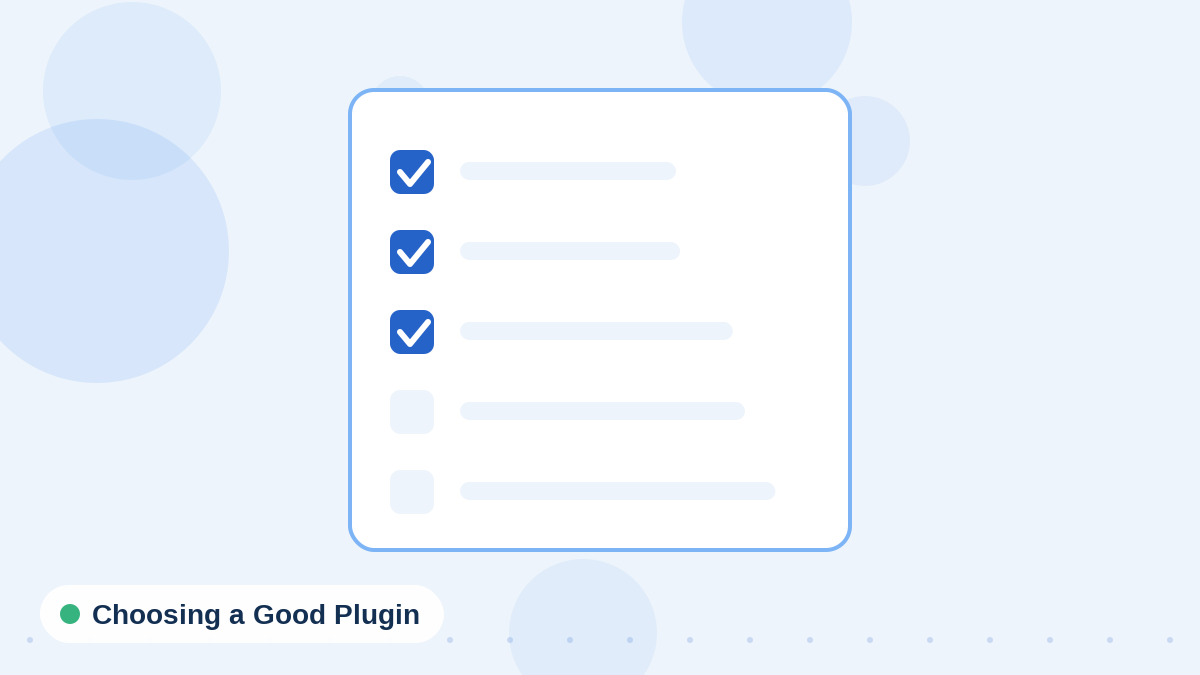
Before installing, check:
Recent updates. Avoid plugins that haven't been updated in a long time.
Compatibility with your WordPress version.
Active installs and reviews in the WordPress plugin directory.
Support responses to recent questions.
Overlap with plugins you already have.
Test on staging first for anything significant.
Keeping Plugins Healthy
Plugins need ongoing care. Update them regularly, ideally after testing major updates on a staging site. Remove plugins you've deactivated and don't plan to use; inactive plugins can still contain vulnerable code. Review your plugin list every few months and ask whether each one still earns its place.
Our WordPress maintenance checklist builds this into a simple routine.
Essential WordPress Plugins FAQ
How many plugins should a WordPress site have?
As few as you need. Many small sites run well with five to ten carefully chosen plugins.
Do I need a caching plugin on Bluehost?
Often not, because caching is built into Bluehost's plans. Check it's enabled first.
Are free plugins safe?
Many are excellent. Choose well-maintained plugins with good reviews and recent updates.
Which SEO plugin should I use?
Yoast SEO is included with Bluehost's WordPress plans. Use one SEO plugin only.
Do I need a backup plugin if my host backs up my site?
For active sites, yes. Off-site daily backups complement weekly host backups.
Should I delete deactivated plugins?
Yes, if you don't plan to use them. Inactive plugins can still be a security risk.